
Before you start: have your Scovell login ready and use Claude with custom connectors enabled. Workspace permissions may affect access.
1. Open Connectors in Claude
Open Claude and go to Settings → Connectors. Depending on your version, this may appear under Customize → Connectors. Select Add, then Add custom connector.
Using a work account? Your workspace administrator may need to enable or add custom connectors first.
2. Add Scovell and paste the connector address
Enter Scovell as the name. In the server URL field, paste the address below, including /mcp. Then select Continue.
https://scovell.rotundahq.com/mcp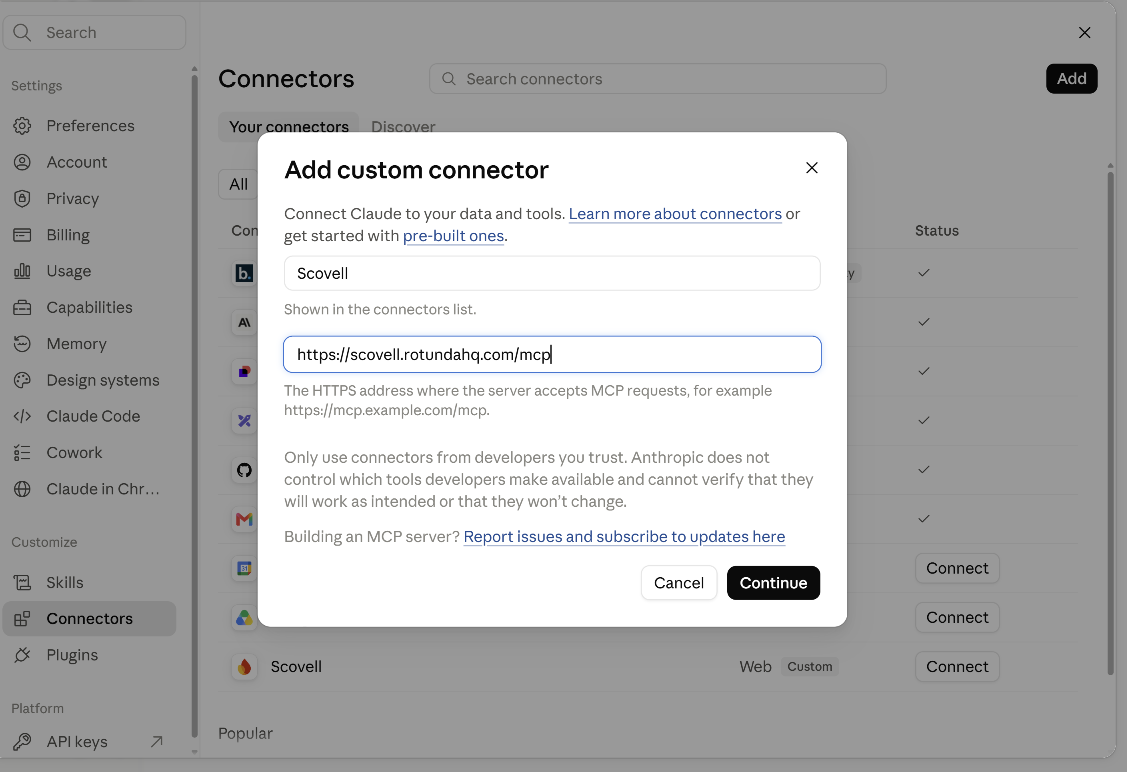
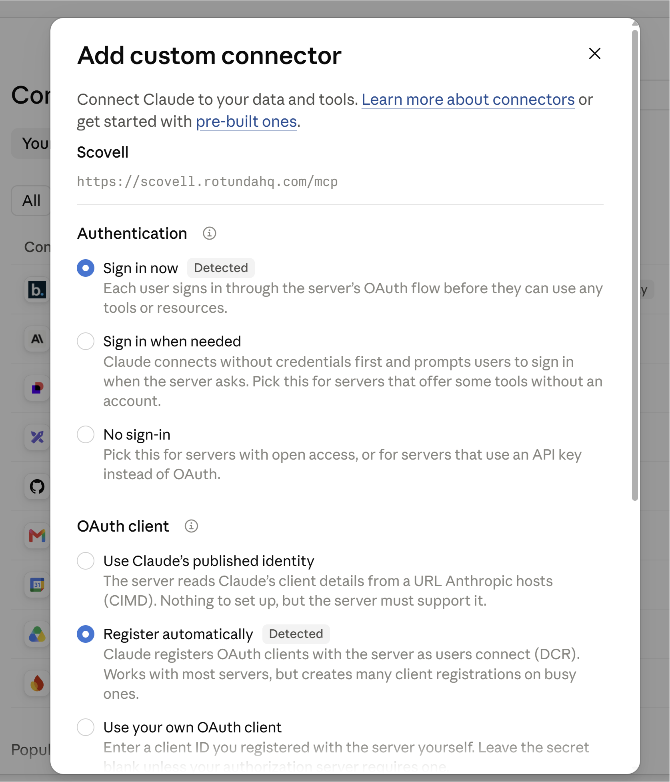
3. Keep the detected sign-in settings
Choose Sign in now under Authentication and Register automatically under OAuth client, as shown. This lets you connect using your Scovell account.
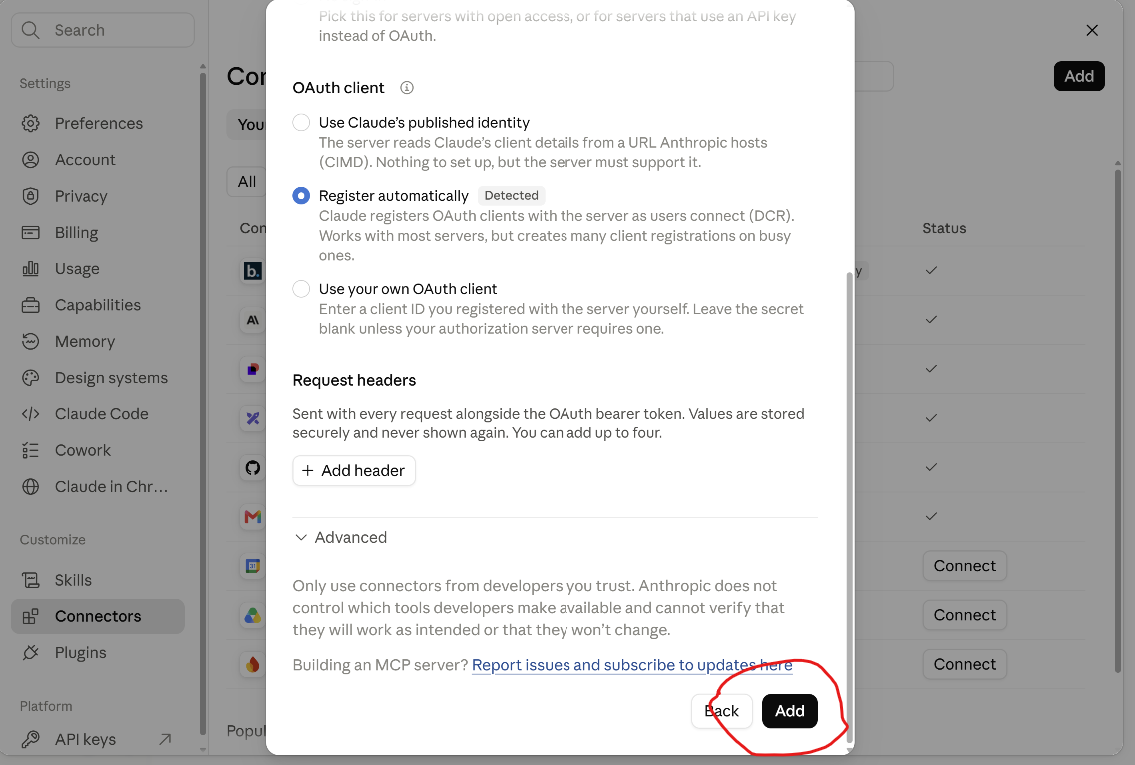
4. Finish adding the connector
Scroll to the bottom of the dialog. Leave Request headers empty and the advanced settings unchanged. Select Add. You do not need to enter an API key or create your own OAuth client for this setup.
5. Sign in to Scovell and approve the connection
A Scovell page titled Connect Claude to Scovell opens. Enter your Scovell email and password, review the access requested and select Approve. If you do not have an account yet, create one at Scovell, then return to connect.
Enter your password on the Scovell sign-in page, not in a Claude conversation. Screening through the connector uses your Scovell account and its usage allowance. If the connector remains disconnected, return to Connectors and select Connect beside Scovell.
6. Enable Scovell in your conversation
Start a new Claude chat. Select the + beside the message box, open Connectors and turn Scovell on. If it is already enabled, you are ready to screen.
7. Ask Claude to run a screening
Try the example below. When Claude asks to use Screen name from Scovell, select Allow once to authorise this request. Claude also offers Always allow if you prefer to grant ongoing permission for that tool.
Please use Scovell to screen the company GV Gold.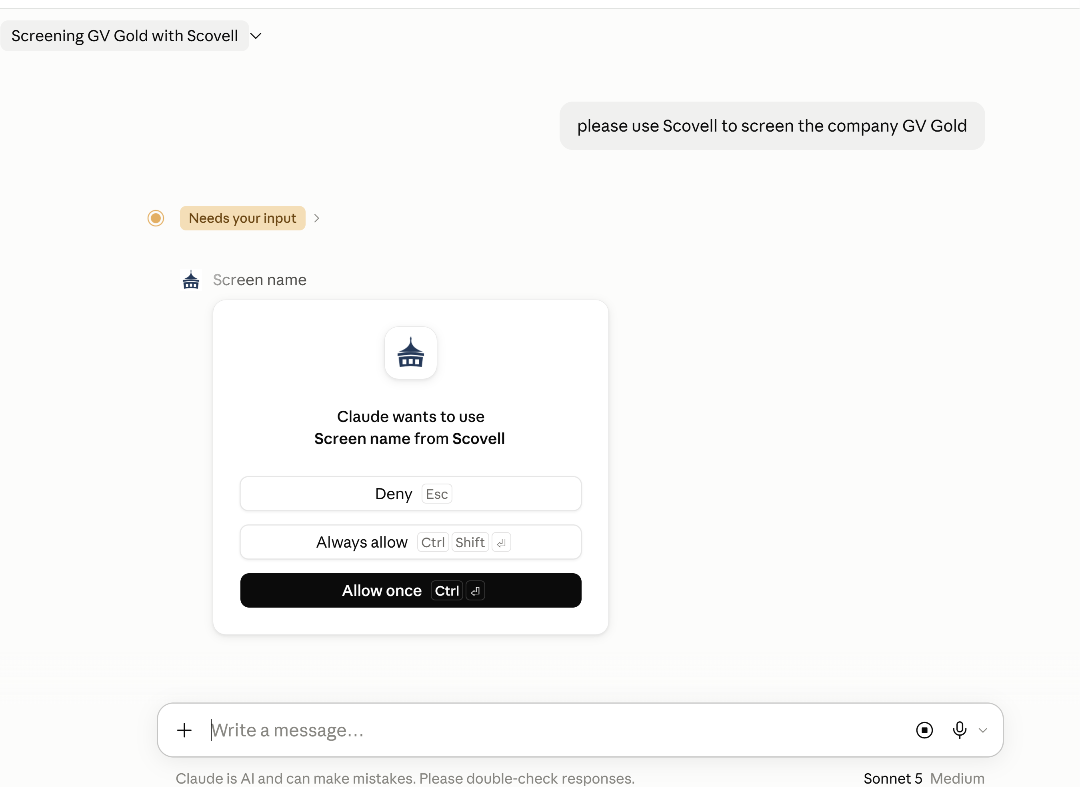
8. Review the candidate matches
Claude displays the Scovell result in the conversation. Review the candidate matches, source references and screening reference. Compare identifying details and check the original sources before deciding whether a result is a true match.
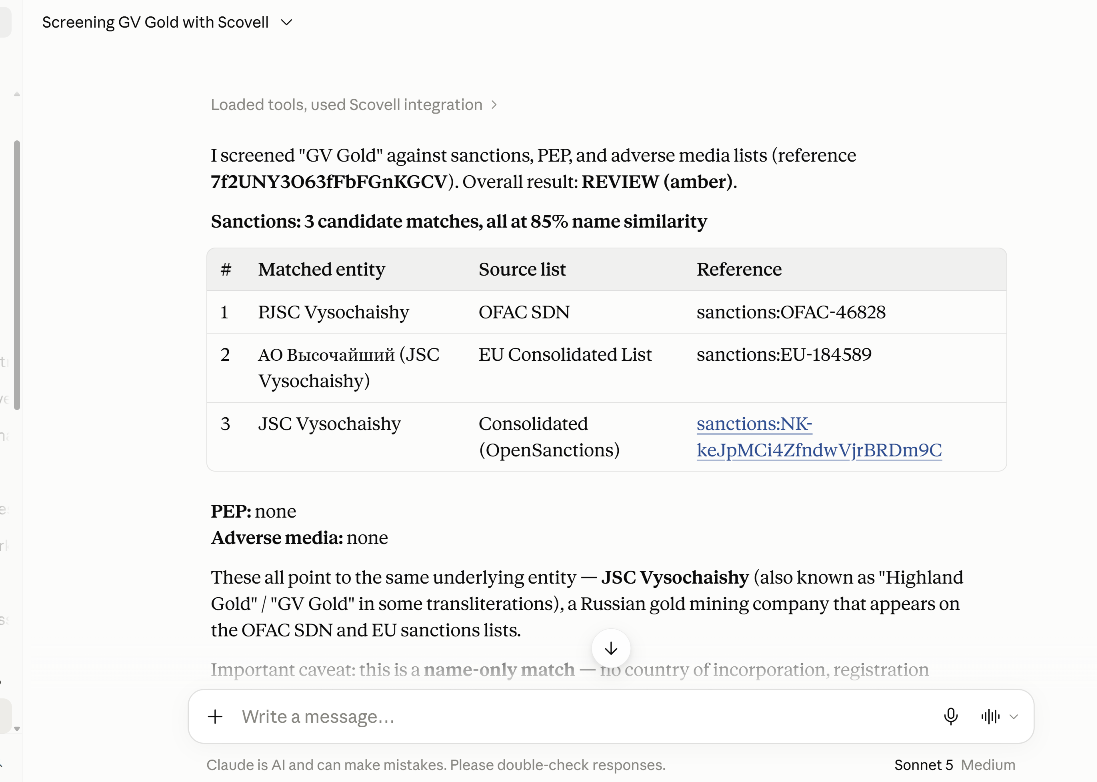
Illustrative screenshot from 18 September 2026. Results can change as source data changes. A similarity score is not a probability of identity, and Claude’s summary is not a verified finding. “None” means no results returned for that screening, not a guarantee that no risk exists.
If something does not work
- No Add custom connector option: check your Claude workspace settings or ask your administrator.
- Sign-in does not complete: check that you used the full URL ending in /mcp, then reconnect using your Scovell account.
- Claude does not use Scovell: enable it under + → Connectors and explicitly ask Claude to use Scovell.
- A usage-limit message appears: check your Scovell account allowance.