
Before you start: have your Scovell login ready and a ChatGPT account with access to Plugins. Workspace permissions may affect access.
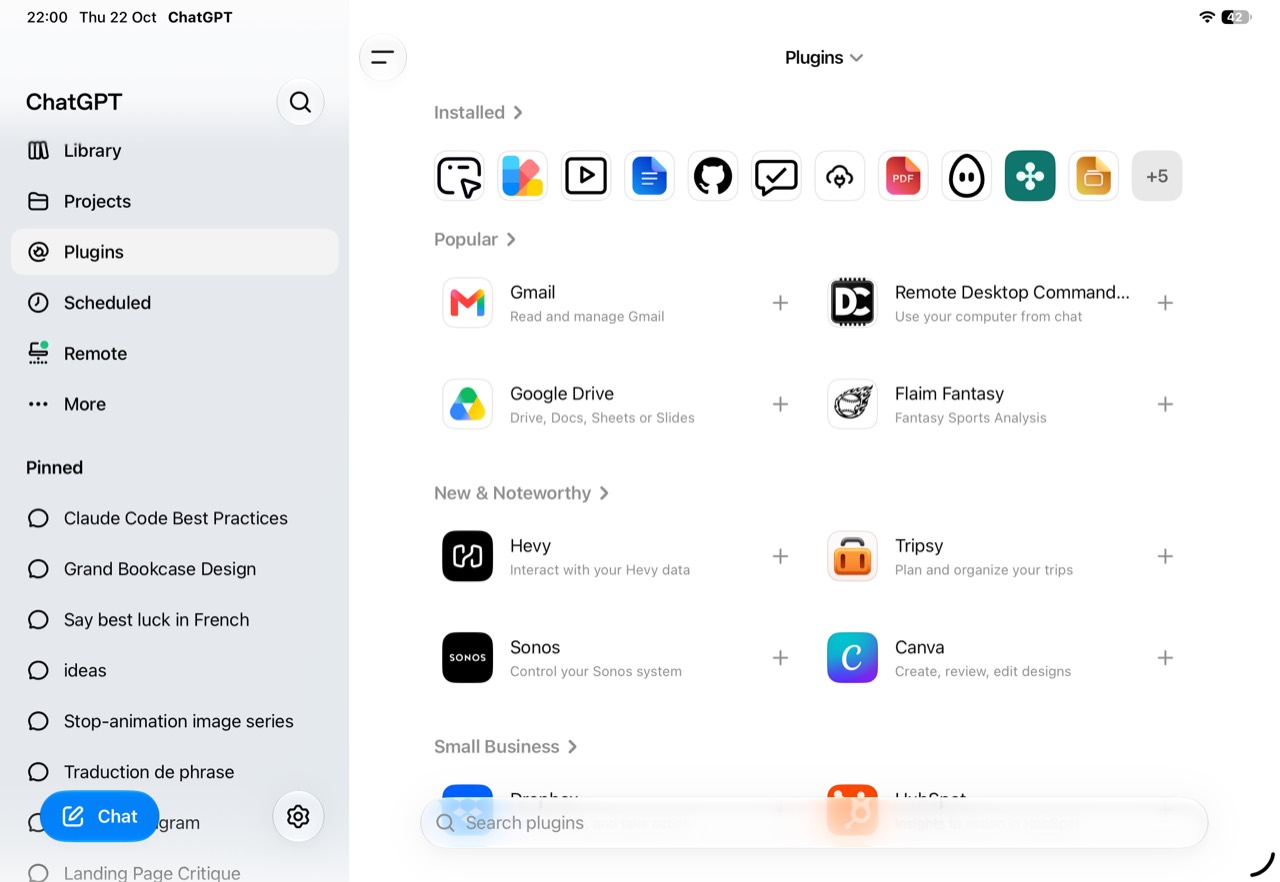
1. Open Plugins in ChatGPT
Open Plugins in the ChatGPT sidebar.
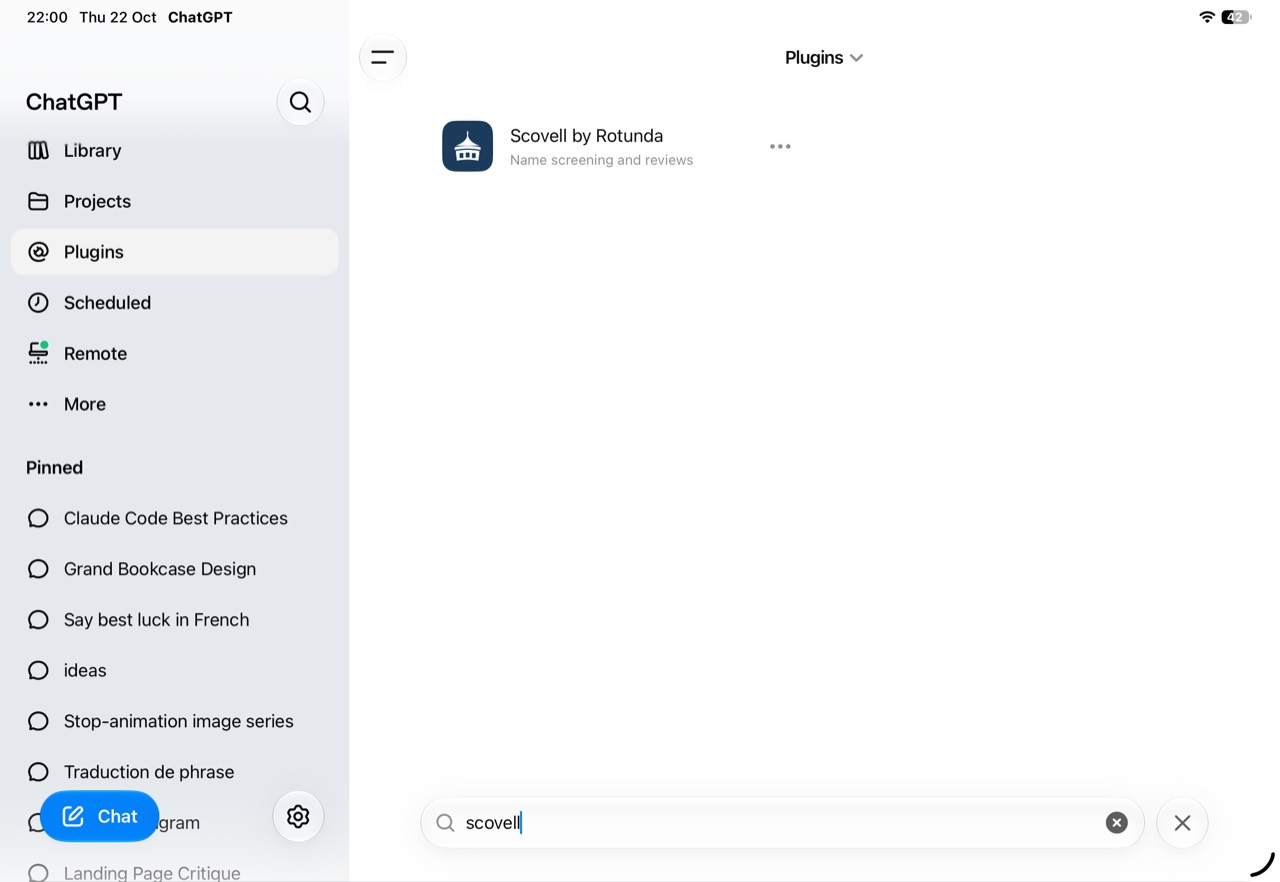
2. Search for Scovell
Type Scovell in Search plugins. Select Scovell by Rotunda, described as Name screening and reviews, to open its details.
3. Install Scovell by Rotunda
Select the + button to install the plugin, then follow the prompts to connect your Scovell account. If it is already installed, open its details and connect if prompted. ChatGPT may ask you to sign in during installation or the first time you use Scovell.
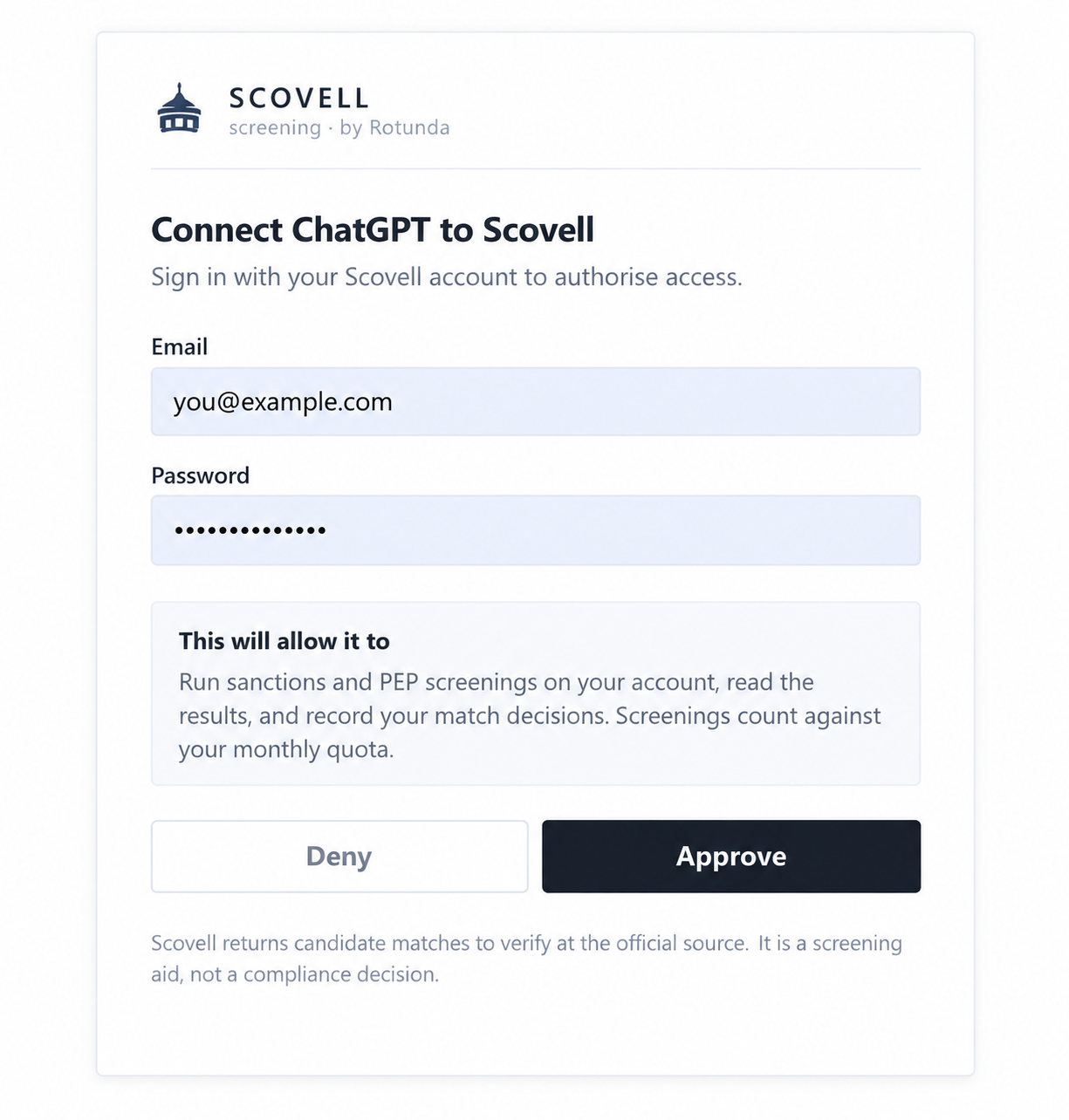
4. Sign in with your Scovell account
On the Scovell authorisation page, enter your Scovell email and password. Review the requested access, then select Approve to connect. If you need an account, create one at Scovell first. Enter your password on the sign-in page, never in the chat.
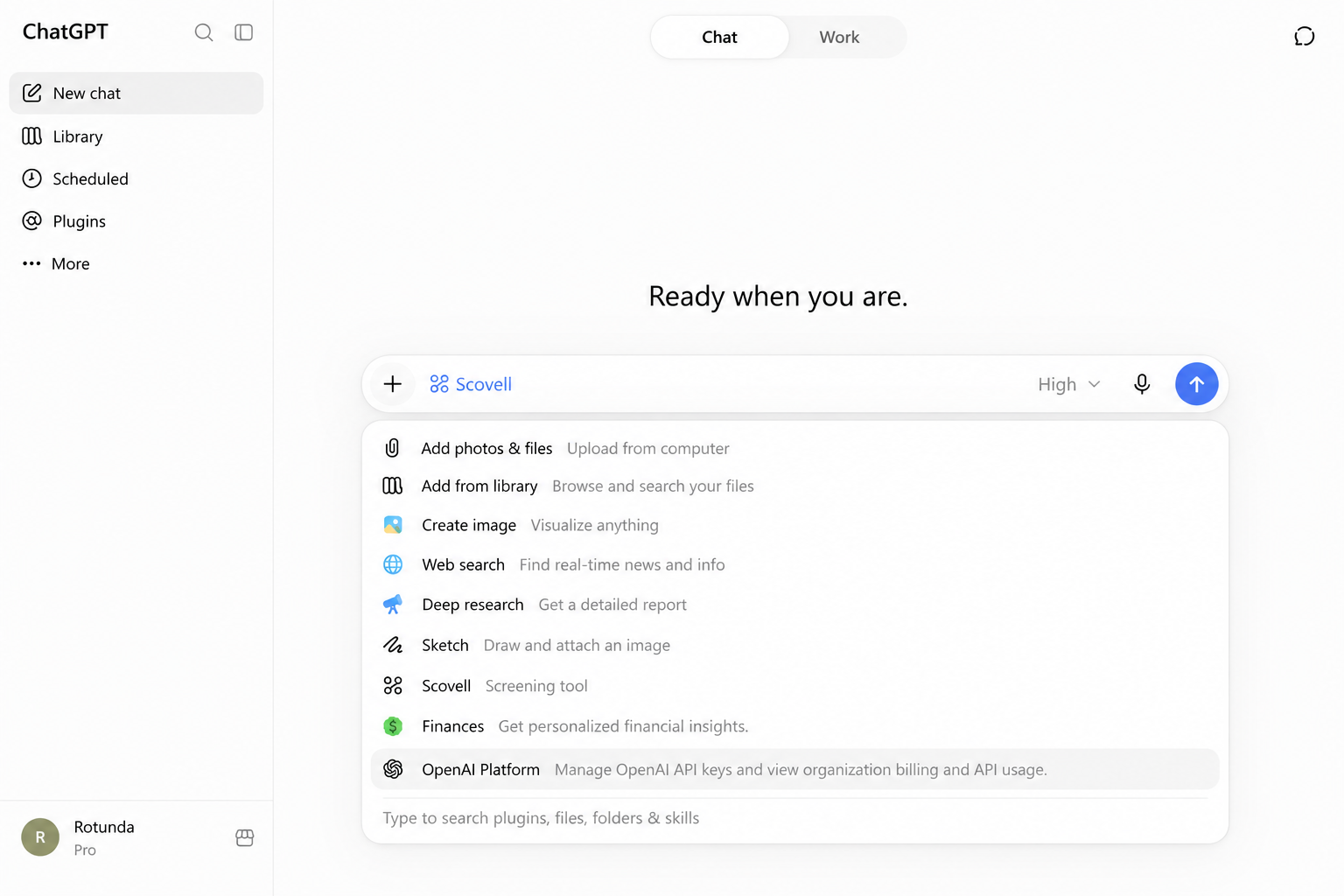
5. Find Scovell in a new chat
Start a new conversation and select + beside the message box. Type Scovell in the plugin search and select it. You should see Scovell attached to the composer, as shown. Search for it after installing the plugin and connecting your account.
6. Ask ChatGPT to screen a name
Enter a request such as the example below. If ChatGPT asks permission to use a Scovell tool, review the request and approve it to proceed. Screening uses your Scovell account and its usage allowance.
Use Scovell to screen the company GV Gold.7. Review the results at source
Review the candidate matches, source lists and Scovell reference. Check identifying details and the original sources before deciding whether a candidate is a true match. You can then ask the assistant to record your decision against the relevant screening, with your reason.
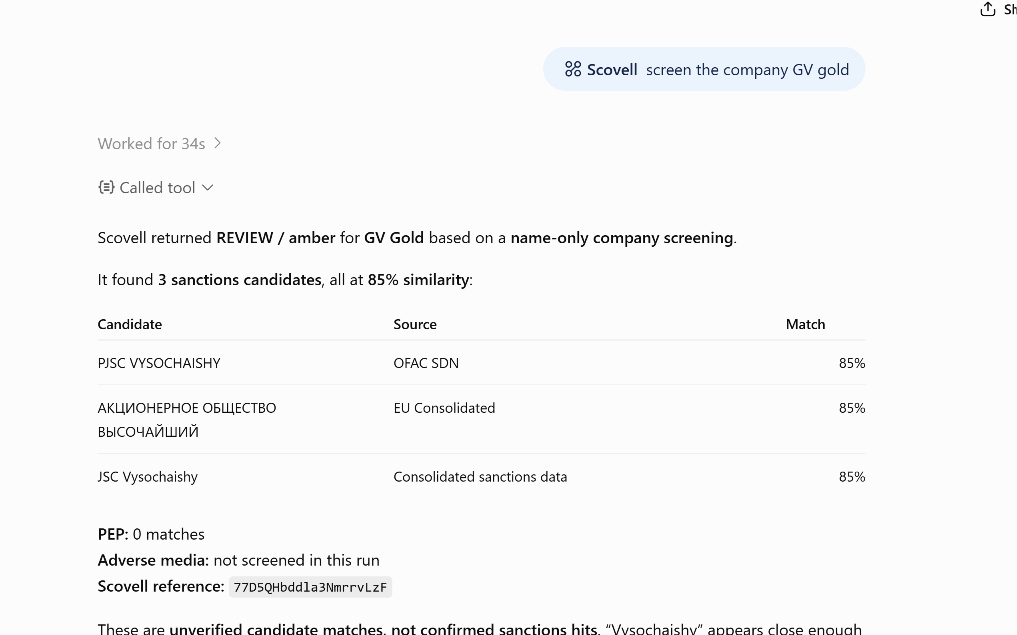
A similarity score is not a probability of identity. These are candidate matches, not confirmed findings. In this example, adverse media was not screened; that does not mean no adverse media exists. Zero PEP matches means none were returned for this run, not a guarantee of no risk.
If Scovell does not appear
- Open Plugins, search for Scovell by Rotunda and check that it is installed.
- Check that Scovell sign-in and approval have completed. You may be prompted when you first use the plugin.
- Start a new chat, search for Scovell in the + menu and select it.
- If Plugins or Scovell is unavailable, check your account or workspace permissions.